 IT SGI Payment Portal
How to submit an invoice
Vendor portal guide — from sign-in to payment status
Use this guide to send us an invoice, check the numbers we read from it, and follow its payment status. It takes about five minutes the first time.
Before you start
- The email address you gave us — only registered addresses can sign in. If you cannot sign in, ask your Somagede contact to add it.
- Your invoice as a PDF file, or a clear photo / screenshot of it (PNG or JPG).
- The e-Faktur (tax invoice) PDF if you already have it. If it is not ready, you can add it later.
Sign in with your email
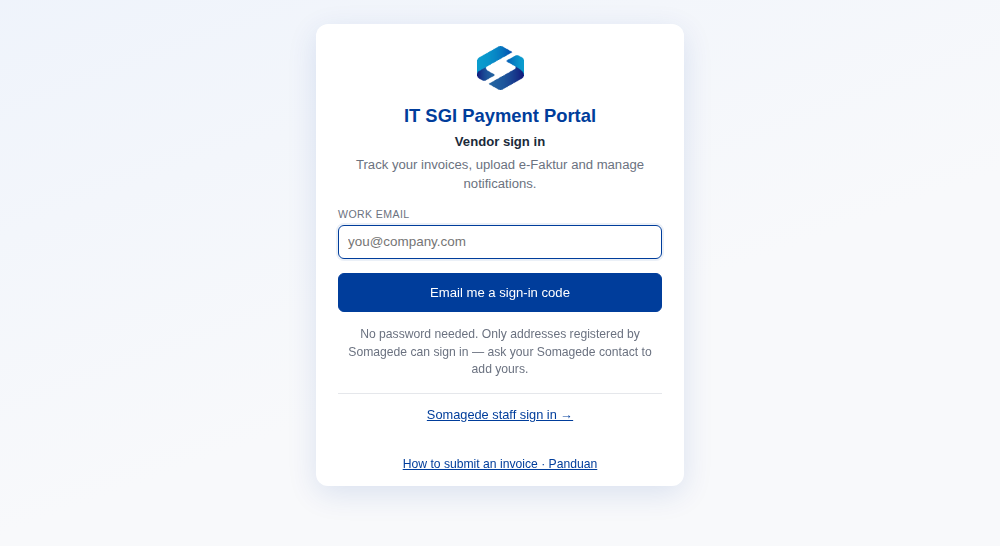
Open the vendor portal link we sent you and type your email address. We email you a 6-digit code — there is no password to remember.
- The code is valid for 10 minutes. You can ask for a new one after 1 minute.
- After 5 wrong codes you must request a new one.
- No email? Check your spam folder, then confirm with your Somagede contact that this address is registered.
Upload the invoice
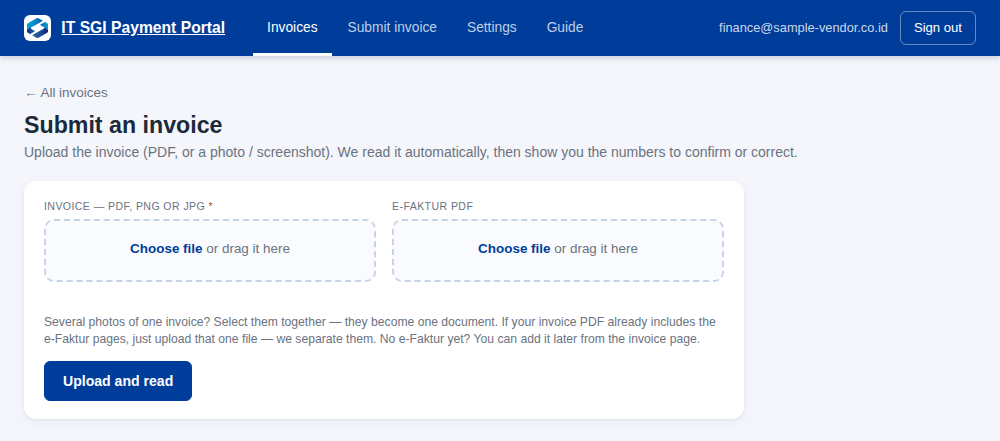
Choose Submit invoice in the top menu.
Add the invoice PDF (required). Add the e-Faktur PDF too if you have it, then press Upload and read.
- If your invoice PDF already contains the e-Faktur pages, upload that one file — we separate them for you.
- The invoice can be a PDF, PNG or JPG; the e-Faktur must be a PDF. Several photos of one invoice can be selected together — they become one document. Total size per upload: up to 40 MB.
- You do not need to type the invoice number: we read it from the document.
Wait while we read it
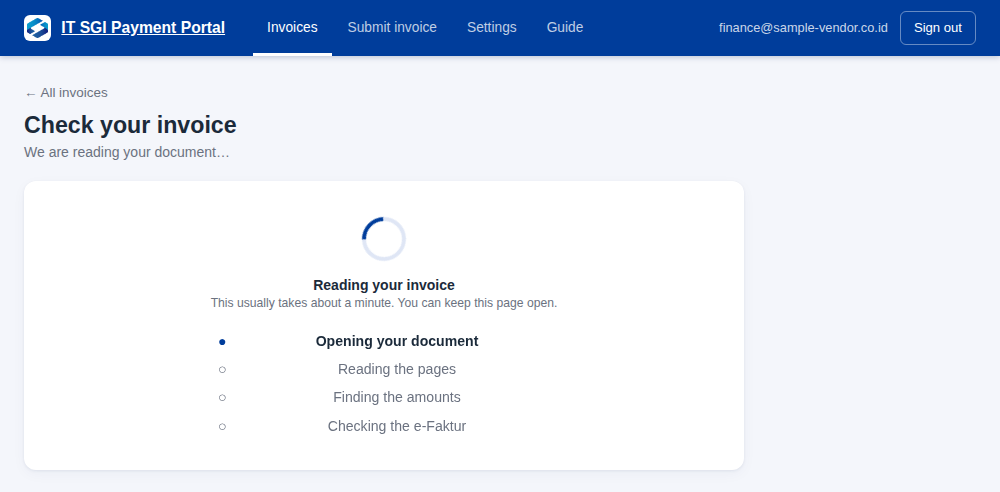
A progress page appears while our system reads your document. It usually takes about a minute. Please keep the page open.
Check the numbers and confirm
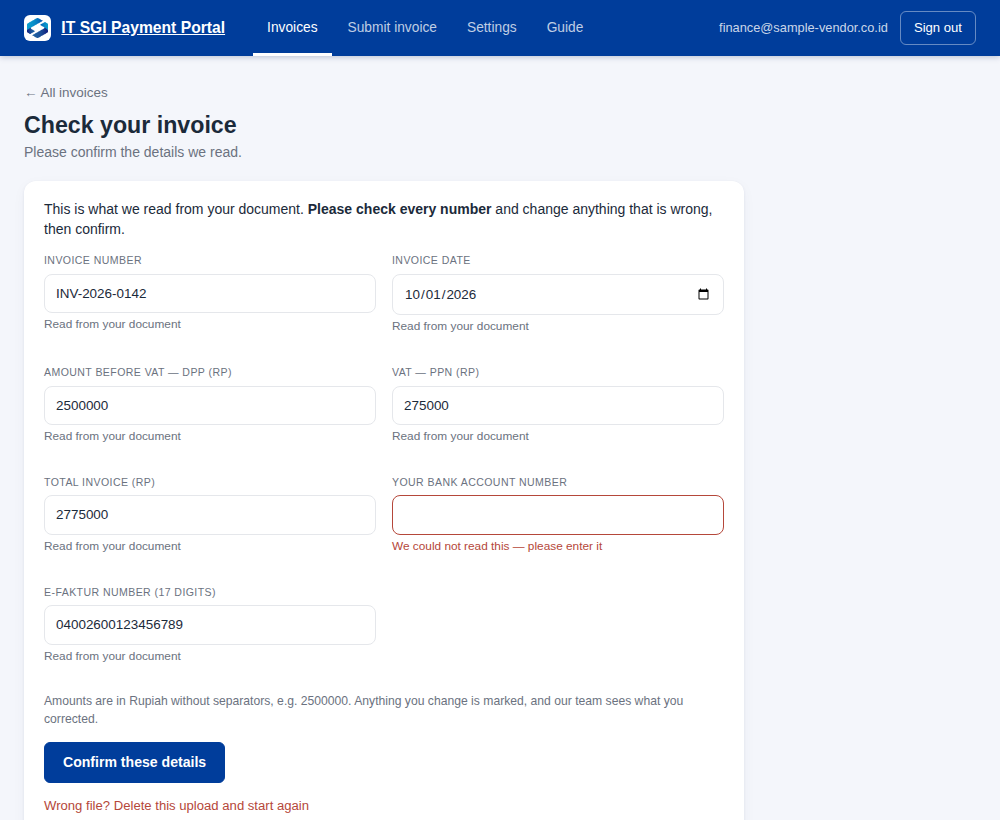
We show what we read: invoice number, date, amount before VAT (DPP), VAT (PPN), total, bank account and e-Faktur number.
Please check every number against your invoice. Change anything that is wrong, then press Confirm these details.
- Amounts are in Rupiah, digits only, no dots or commas — for example 2500000.
- Total invoice is the total amount due printed on your invoice.
- A field marked red means we could not read it — please type it in.
- A field marked amber means you changed what we read. Our team can see your corrections, so correct only what is truly wrong.
- The e-Faktur number has 17 digits. The bank account number is optional.
- You can still correct the details later, until we start approving the invoice.
Add the e-Faktur or other documents
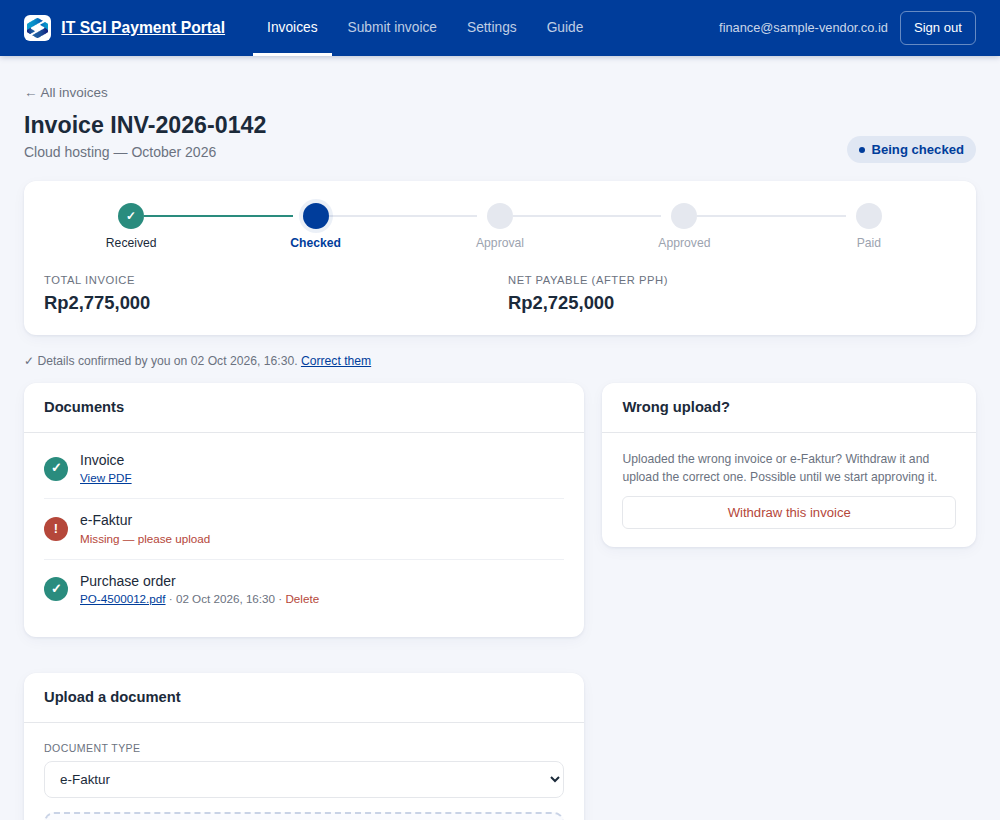
Open the invoice from your list. Under Upload a document choose the type — e-Faktur, purchase order, delivery note / BAST, contract / quotation or other — then choose the file and press Upload.
PDF, PNG and JPG files are accepted for supporting documents.
Follow the status
Each invoice shows where it is: Received → Checked → Approval → Approved → Paid.
When it is paid you see the payment date and the payment number from our accounting system.
- We email you when we receive an invoice and when it is paid. Under Settings you can switch these emails on or off and add more recipients.
- If an invoice shows On hold, please get in touch with your Somagede contact.
Uploaded the wrong file?
Before approval starts you can fix it yourself:
- Wrong invoice or e-Faktur: open the invoice and press Withdraw this invoice (or Wrong file? Delete this upload and start again on the confirm page). Then upload the correct one.
- Wrong supporting document: press Delete next to it in the Documents list. The e-Faktur cannot be deleted — upload the correct one instead.
- Once approval has started, get in touch with your Somagede contact.
Common questions
The amounts we read do not match my invoice.
Type the correct amounts in the confirmation page. Our team sees what you corrected and will check it.
My invoice shows a PPh 23 line.
That is fine. We treat it as the tax withholding, not as an item, and use the amounts on your invoice.
Can I upload a photo of the invoice?
Yes — PNG or JPG. Lay the page flat, include the whole page and use good light so the numbers are readable. The e-Faktur must still be the PDF issued by DJP.
I closed the page before confirming.
Open the invoice from your list and press Check what we read to continue.
Need help?
Get in touch with your Somagede contact and give them the invoice number. Please do not send invoices by email if you can use the portal — it is faster and you can see the status.